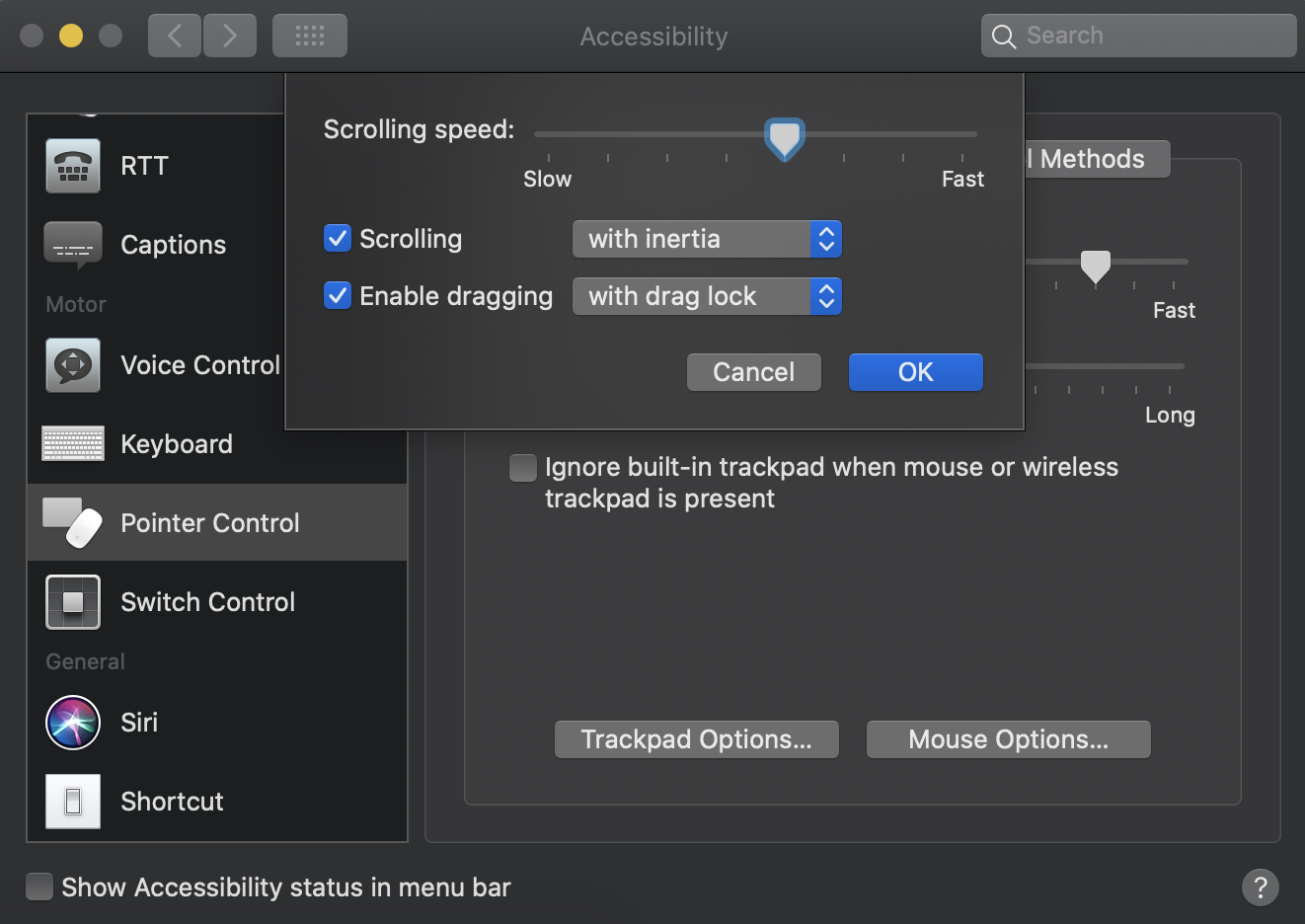
新的 macOS 把這功能 default 設成不開啟, 需要特別打開
2023.0607
2023.0817
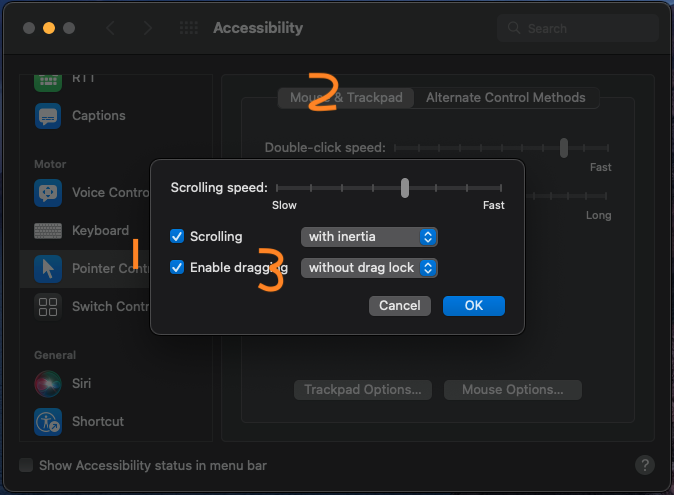
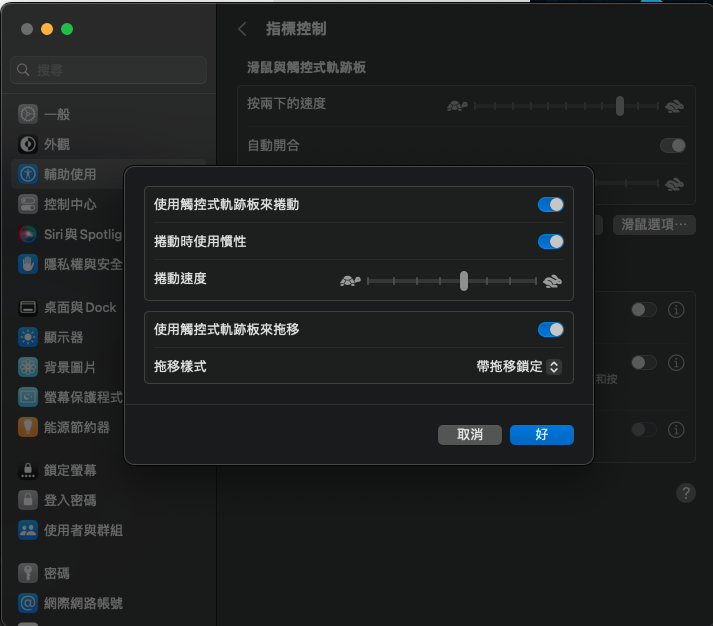
新的 macOS 把這功能 default 設成不開啟, 需要特別打開
2023.0607
2023.0817
依照下列步驟來重置 Mac 電腦的 NVRAM。
1.將Mac關機。
2.啟動您的 Mac,立刻按住 Command-Option-P-R 組合鍵
3.按住這些鍵,直到電腦重新啟動且再次聽到開機啟動音效
https://support.apple.com/zh-tw/HT201295
還有另一個方法:重置 Intel 型 Mac 上的系統管理控制器(SMC)
1.拔下電源線
2.等候 15 秒鐘
3.重新插回電源線
4.等候 5 秒鐘,然後按下電源按鈕來啟動 Mac
把所有的 USB 外接 都拔掉 再開機一次
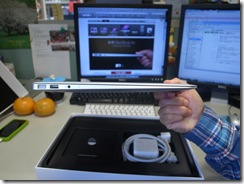
Macbook Air 13 規格直接攻頂 , 所以是:
2.13GHz Intel Core 2 Duo
4GB 1066MHz DDR3 SDRAM
256GB Flash Storage
MBA 選 13吋 256G 的 HD 換快的 CPU 加 RAM.

2.13GHz Intel Core 2 Duo 處理器
配備 6MB 共享 L2 快取記憶體
1066MHz 前端匯流排
4GB 1066MHz DDR3 SDRAM (最高可至 4GB)
SSD 256GB
13.3 吋(對角線) 高解析度 LED 背光鏡面寬螢幕顯示器,支援數百萬種顏色

支援解析度:以 16:10 長寬比顯示時支援 1440 x 900 (標準解析度)
、1280 x 800、1152 x 720、1024 x 640 和 800 x 500 像素;
以 4:3 長寬比顯示時支援 1024 x 768、800 x 600 和 640 x 480 像素;
以 3:2 長寬比顯示時支援 720 x 480 像素

Mini DisplayPort 視訊埠

純數位視訊輸出

DVI 輸出需使用 Mini DisplayPort to DVI 轉接器(需另外選購)
VGA 輸出需使用 Mini DisplayPort to VGA 轉接器(需另外選購)
Dual-link DVI 輸出需使用 Mini DisplayPort to Dual-link DVI 轉接器(需另外選購)
HDMI 輸出需使用 Mini DisplayPort to HDMI 轉接器 (需另外選購)

NVIDIA GeForce 320M 繪圖顯示晶片,與主記憶體共享 256MB 的 DDR3 SDRAM3

雙螢幕顯示與視訊同步功能:同時支援內建顯示器的完全標準解析度、以及外接顯示器最高 2560 x 1600 像素,皆可顯示數百萬色
FaceTime 攝影機

AirPort Extreme Wi-Fi 無線網路4(以 IEEE 802.11n 規格為基礎);與 IEEE 802.11a/b/g 相容。

Bluetooth 2.1 + EDR (Enhanced Data Rate) 無線網路技術

整合式 50 瓦特-小時鋰聚合物電池

具備電線整理功能的 45W MagSafe 電源轉換器

MagSafe 電源埠

長達 7 小時
(無線網頁瀏覽)

尺寸與重量
厚度:0.3-1.7 公分 (0.11-0.68 吋)
寬度:32.5 公分 (12.8 吋)
厚度:22.7 公分 (8.94 吋)
重量:1.32 公斤 (2.9 磅)2
Hooray! 快到囉!
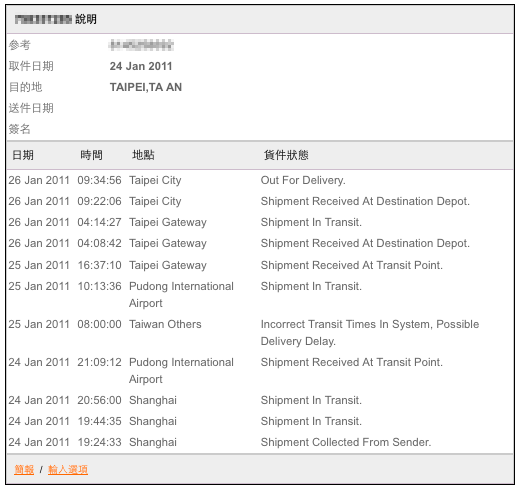
26 Jan 2011 	09:34:56 	Taipei City 	Out For Delivery.
26 Jan 2011 	09:22:06 	Taipei City 	Shipment Received At Destination Depot.
26 Jan 2011 	04:14:27 	Taipei Gateway 	Shipment In Transit.
26 Jan 2011 	04:08:42 	Taipei Gateway 	Shipment Received At Destination Depot.
25 Jan 2011 	16:37:10 	Taipei Gateway 	Shipment Received At Transit Point.
25 Jan 2011 	10:13:36 	Pudong International Airport 	Shipment In Transit.
25 Jan 2011 	08:00:00 	Taiwan Others 	Incorrect Transit Times In System, Possible Delivery Delay.
24 Jan 2011 	21:09:12 	Pudong International Airport 	Shipment Received At Transit Point.
24 Jan 2011 	20:56:00 	Shanghai 	Shipment In Transit.
24 Jan 2011 	19:44:35 	Shanghai 	Shipment In Transit.
24 Jan 2011 	19:24:33 	Shanghai 	Shipment Collected From Sender.


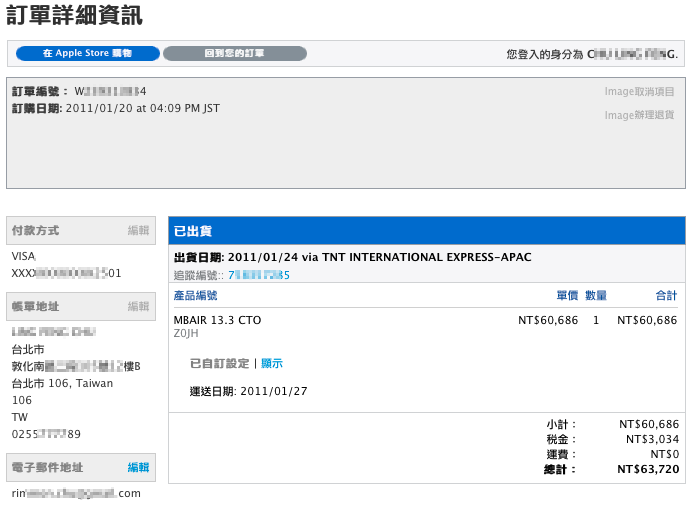
2011/01/20 at 04:09 PM JST Order "MBAIR 13.3 CTO"
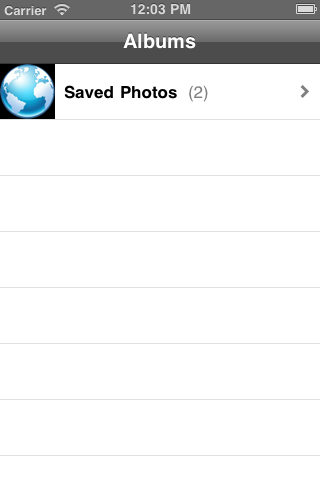
有時候想寫一個從相簿挑選照片的程式, 但 xcode 的 simulator 並不支援照相功能 ,
那個 simulator 相簿總是空空的 , 無法從那邊挑選照片, 於是寫了這個小程式 ,
program 功能是從一個 圖片網址 把那張圖抓下來並且存進 simulator 的相簿中, 這個 code 有實作存成功跟存失敗時的 method.
今天並且練習把這個 open source code hosting 在 google code , 可以 download 下來參考.
URL = https://code.google.com/p/monster-oasis-opensource-iphone/downloads/list
google code 也提供 svn checkout 機制 , 怎麼 check out
參考 URL = https://code.google.com/p/monster-oasis-opensource-iphone/source/checkout
不過發現 google code 雖然提供熟悉的 svn 機制 , 但是有兩大缺點:
不如, 來看一下 git 怎麼用: https://github.com/plans
以下是 這個 code 的截圖:


 |
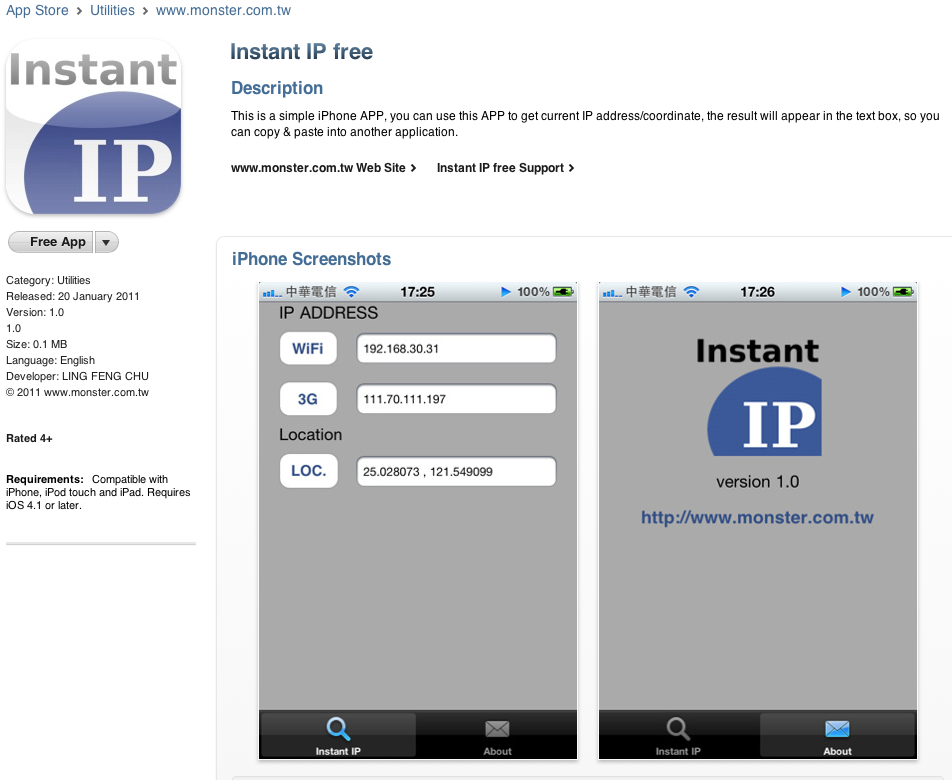
This is a simple iPhone APP, you can use this APP to get current IP address/coordinate, the result will appear in the text box, so you can copy & paste into another application.
這是個簡單的 iPhone APP , 用來立即查詢 iPhone 目前拿到的 IP address , 還有座標, 查詢後資料在文字框顯示, 方便使用者剪貼到別的應用程式去. OK, 這個 iPhone APP 已經可以在 app store 上搜尋得到囉! 所以今天開始(2011.0120) 點這邊去 app store 安裝 |
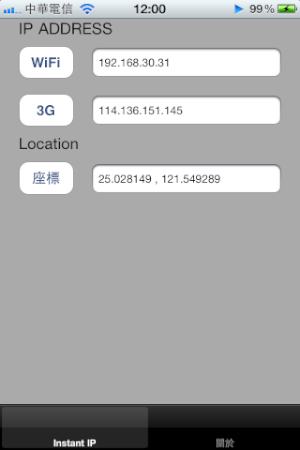
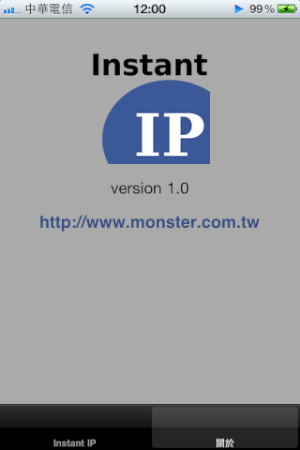
in iTune store , search : “instant ip”
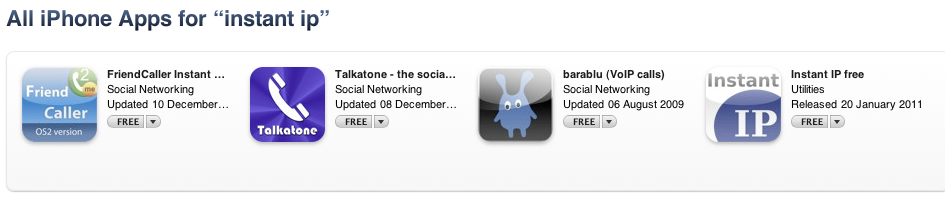
You can see this:
聽聽 Apple 謠言中心的建議 ….